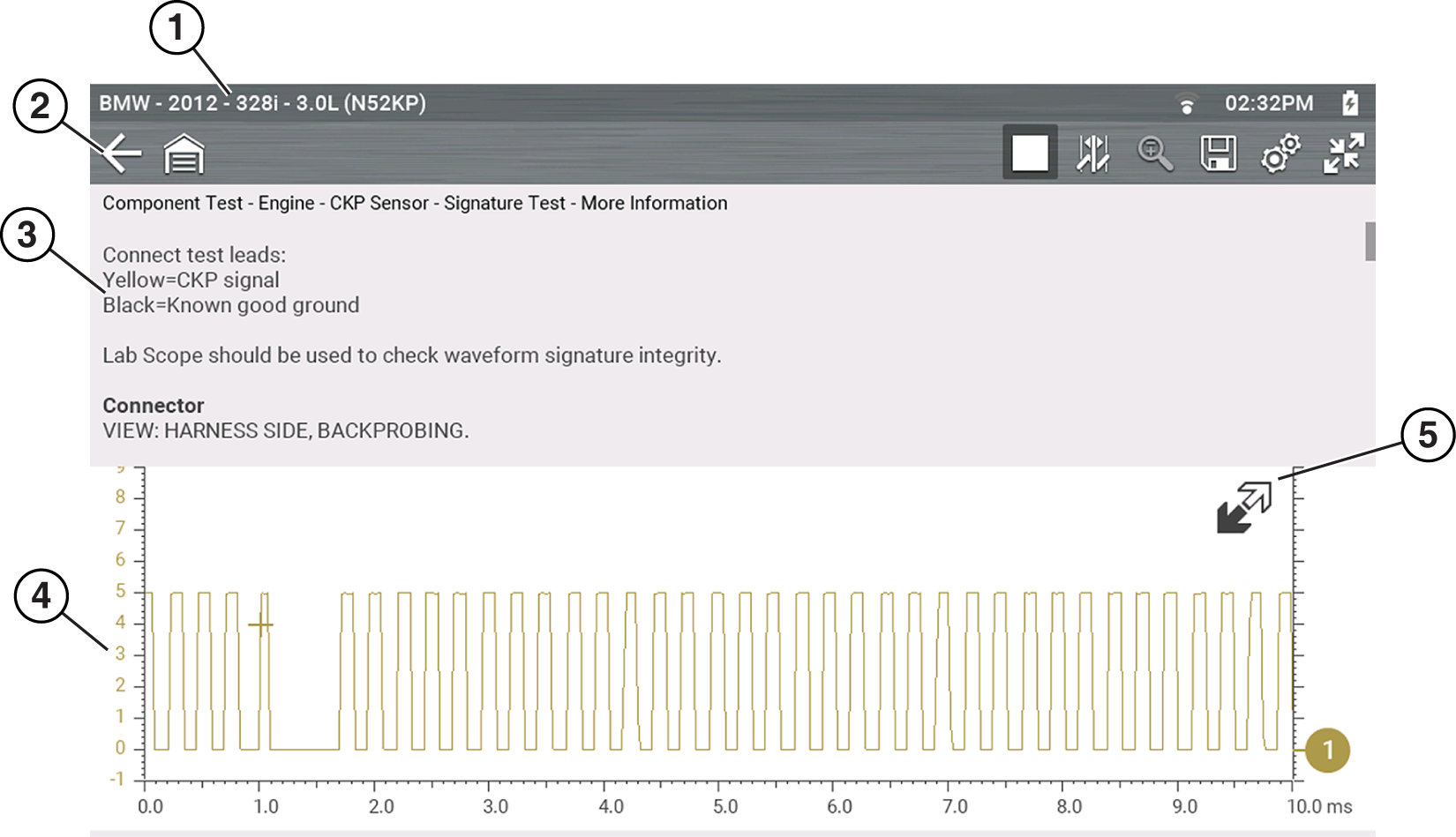
| 1. | Vehicle Identification |
| 2. | Toolbar—contains control icons |
| 3. | Information Panel—displays test information |
| 4. | Main Body—displays menus, information, meter scales and signal traces |
| 5. | Expand/Collapse icon—expands and collapses the control panel on the screen |
The main body of a Guided Component Test screen may display any of the following:
| ● | Selectable Menu - Select menu options using the touch screen or control buttons. |
| ● | Component Information - Provides information to assist you with testing. |
| ● | Test Meter - The test meter can display up to two signals, simultaneously. Signal and display adjustments are made through the Control Panel. Signals are displayed using a grid with scales, both vertical (y axis), and horizontal (x axis). |
Guided Component Tests Control Icons
Guided Component Tests toolbar control icons may vary depending on the active function or test.
|
Icon |
Function |
|
|
Stop - Stops the data buffer. |
|
|
Cursors - Toggles cursors on/off. |
|
|
Expand/Collapse Icon - Toggles display of the control panel (Trace Detail). |
|
|
Expand/Collapse Icon - Toggles the Main body display between full and split screen. |


